Pen Tool is the core tool for drawing directly with the currently selected color. From placing individual pixels to dragging continuous strokes, it is the tool you will use most often.
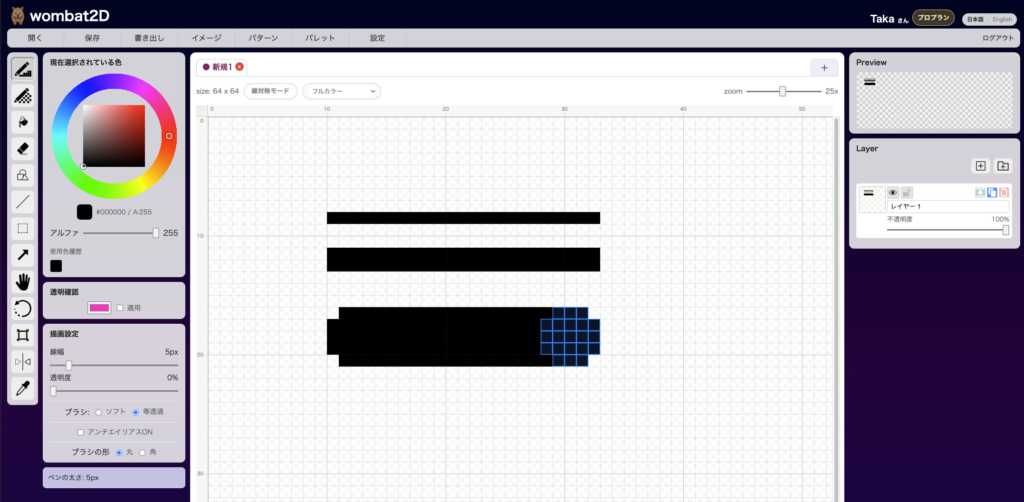
Icon

This is the pen-nib icon. It is placed near the top left of the toolbar.
Effect
It draws onto the active layer using the current color. By changing brush size, opacity, brush shape, and anti-aliasing, you can use it for everything from rough sketching to final cleanup.
Brush Types

The brush has two modes: Soft and Uniform Transparency. When the selected alpha is 255 there is no visible difference, but once you start drawing with transparency, the feel changes.
The examples below use alpha 30 to show the difference.
Soft

Each pass lays another alpha-30 stroke on top of the previous one. That means the visible density changes depending on how fast you move the pen, making this mode useful for rough strokes and watercolor-like texture.
Uniform

This mode paints using the specified alpha value regardless of drawing speed or movement amount.
It is useful when you want even, predictable transparency.
About Anti-Aliasing
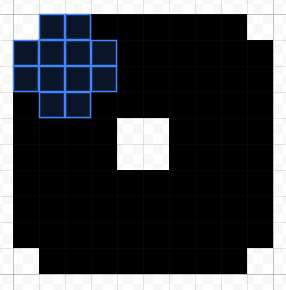
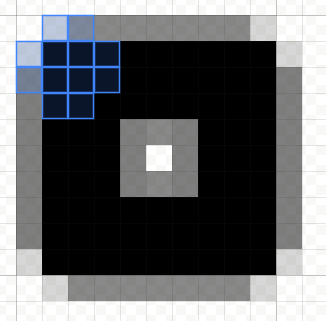
Anti-aliasing smooths the edges of pixels. With it turned on or off, the overall taste changes quite a bit, so choose the one that matches your target style.
Anti-Aliasing Off
Anti-Aliasing On
Shortcut
The default shortcut is Shift + P. You can change it in the shortcut settings.
Shortcuts While the Pen Tool Is Active
Ctrl/Cmd + Mouse Wheel: change brush size- Hold
Space: temporarily pan the canvas Alt+ click: temporarily switch to the eyedropper- Hold
E: temporarily use the eraser while staying in the pen workflow