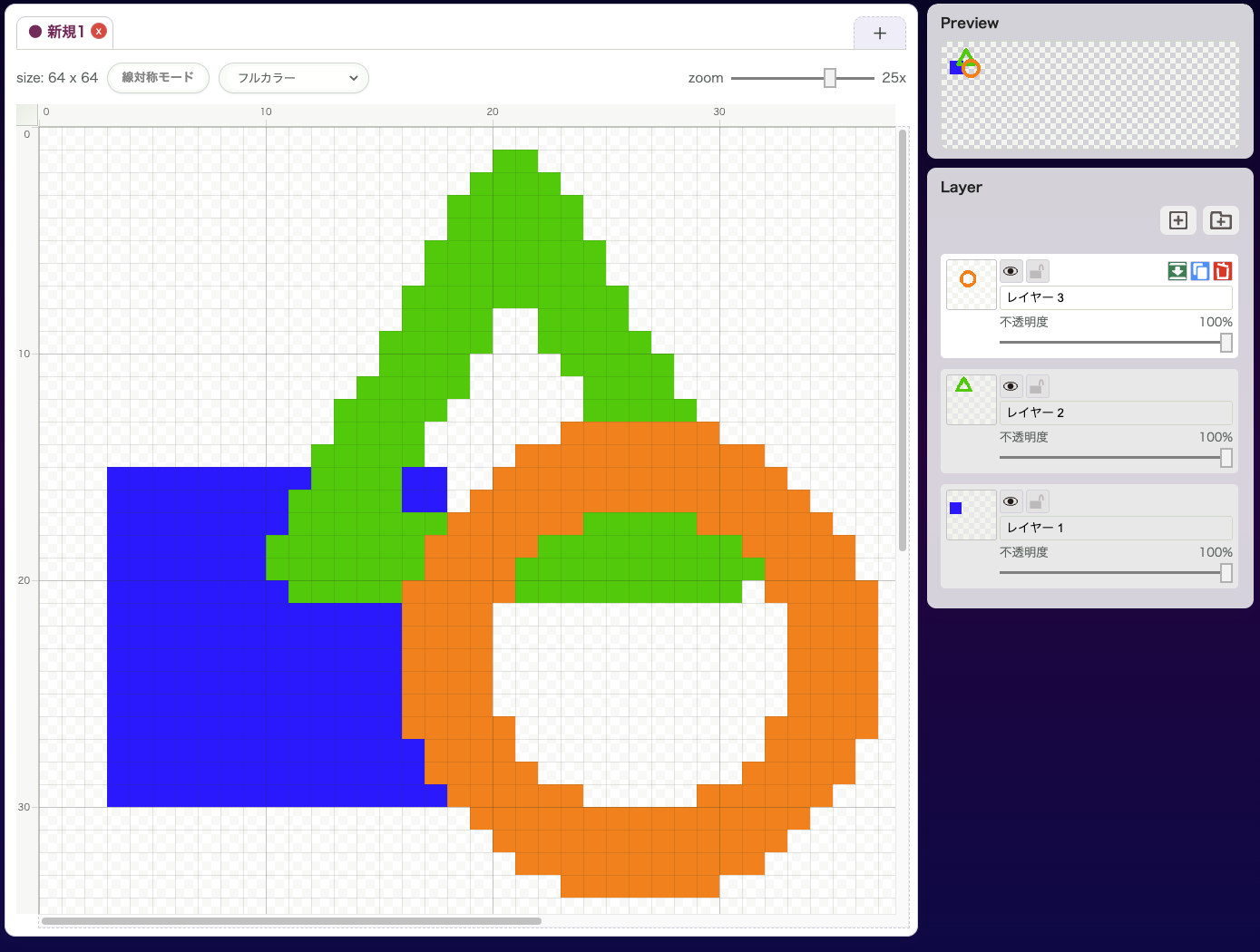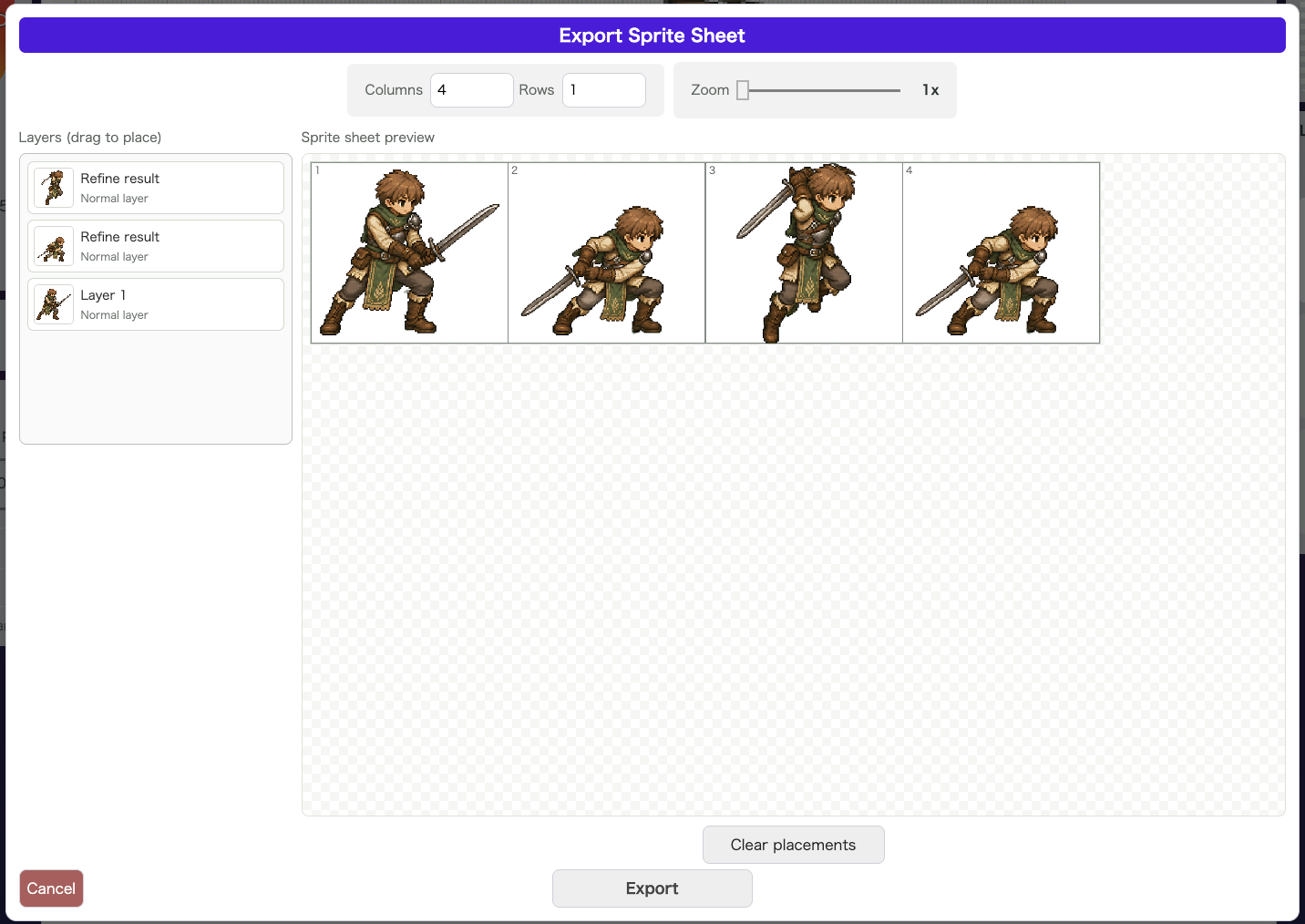
Sprite Sheet Export arranges layers frame by frame and exports them as a single PNG image. It is useful when you need to hand walking animations, attack motions, facial variations, or other frame-based assets to a game engine or a programmer.
How to Use It
First, make sure the images you want to include are already present on individual layers.
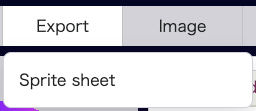
Then open Export > Sprite Sheet.
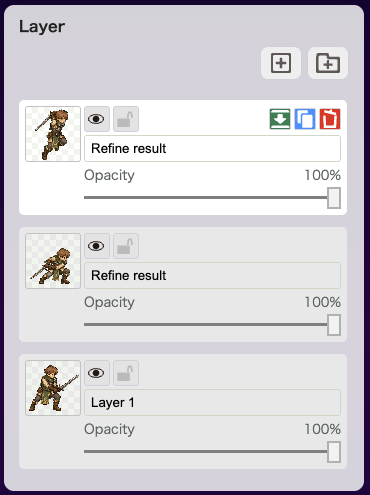
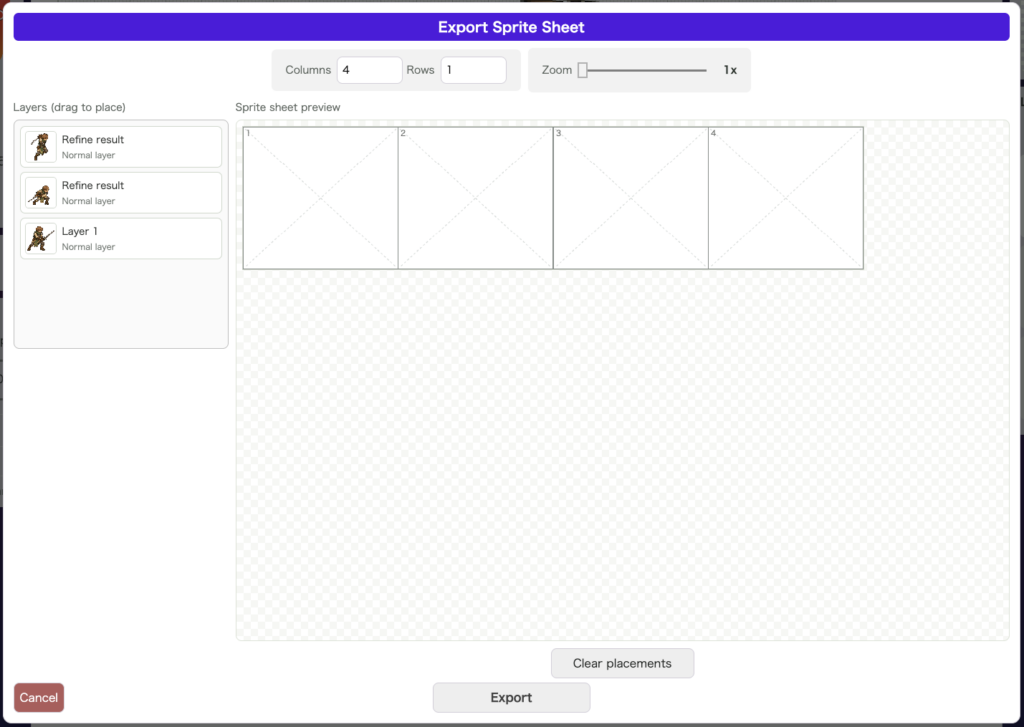
When the window opens, the layer list appears on the left and the sprite sheet preview appears on the right.
At the top, you can adjust the number of frames you need.
Next, decide how many columns and rows you want, then drag the layers you need from the list on the left into the frames on the right.
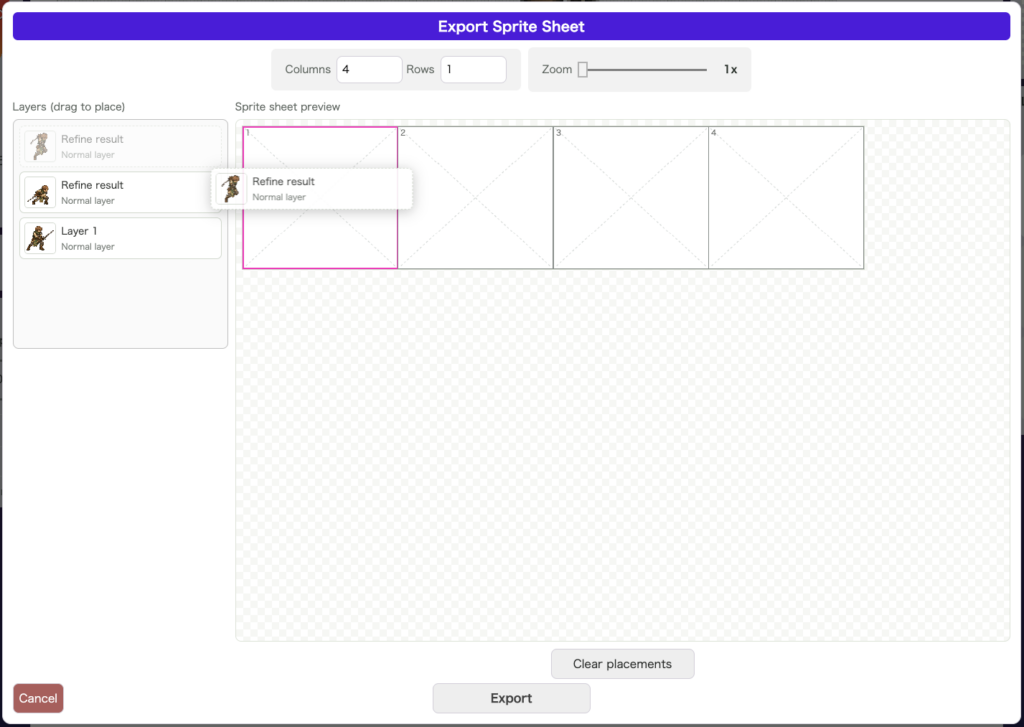
Continue placing layers frame by frame.
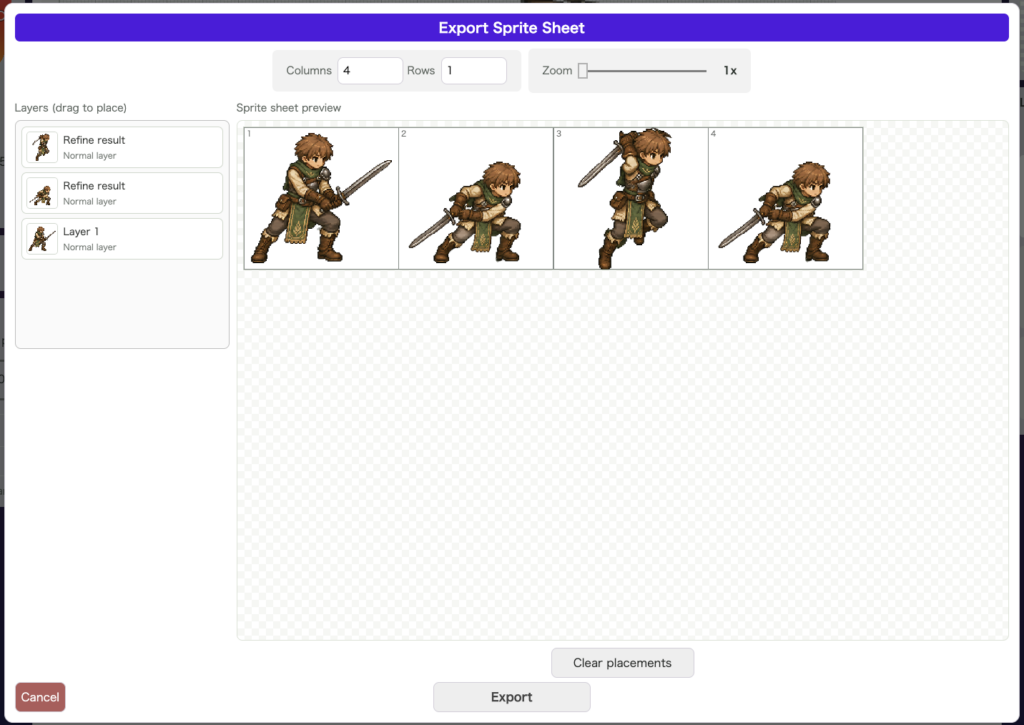
Once the layout is done, press Export to save the sprite sheet as PNG.

Because you can preview the entire arrangement while working, it is easy to keep track of which image goes into which frame. Materials inside layer folders can also be arranged this way, which makes it easier to manage animation variations.
In the free Beginner plan, the number of available frames is limited. It is often easiest to prototype with a smaller sheet first and expand the structure only if needed.
Good Use Cases
- You want to bundle frame-based animation for a game
- You want to organize pose variations or effect frames
- You want to export image data in a format that is easy for implementation work
Notes
- A canvas or image must already be open before you can use it
- The layout can be reset later with
Reset - The export format is PNG