Function Description

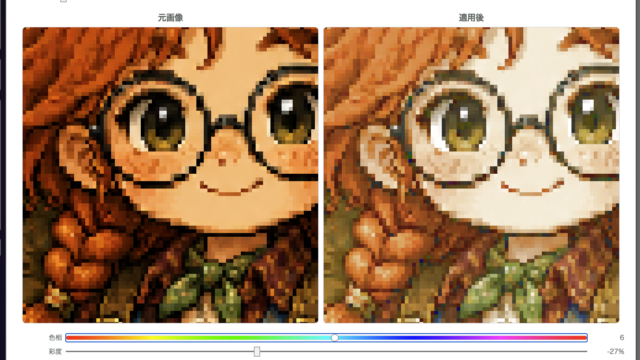
How to Use Hue / Saturation

Hue / Saturation is for quickly adjusting the overall color feel of the image. It is useful when you want to shift the mood a little or create color variations from the same artwork.
Function Description

How to Use the Eraser Tool

Eraser Tool is the basic tool for turning drawn pixels back into transparency. It works for both tiny one-pixel cleanup and larger erasing with a broader brush.
Function Description

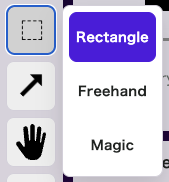
How to Use the Selection Tool

Selection Tool is used when you want to define an editable area or cut something out. It offers three methods: rectangle selection, freehand selection, and automatic selection based on similar colors.
Function Description

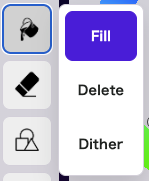
How to Use the Bucket Tool

Bucket Tool is used to process a closed area all at once. In addition to normal fill, it also supports erase fill and dithering fill.
Function Description

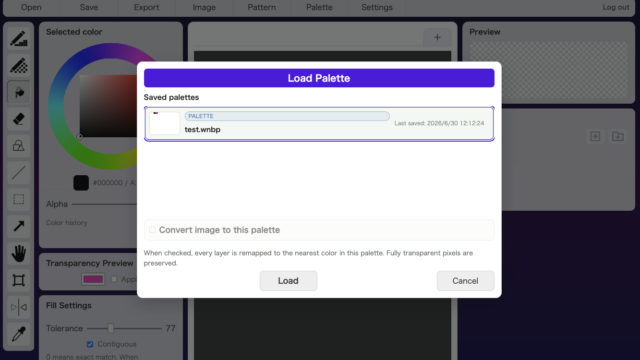
How to Save and Load Palettes

Save / Load Palette lets you save the colors used in an image and later load a saved palette back into the current artwork. It is useful when you want multiple assets to share a unified color style, or when you need to work within a fixed palette for game development.
Function Description

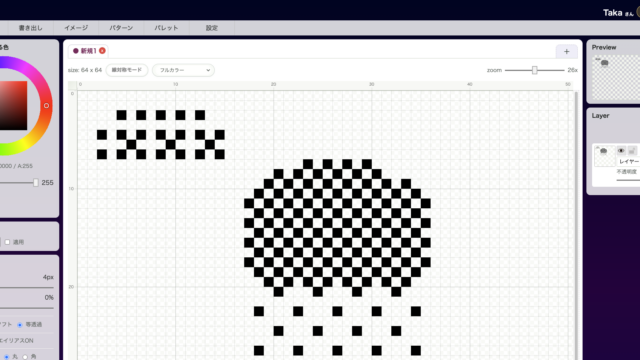
How to Use the Dithering Pen Tool

Dithering Pen Tool draws using the selected dithering pattern instead of laying down a solid color. It is useful when you want to place color as texture or pattern rather than as a flat fill.
Function Description

How to Create Dithering Patterns

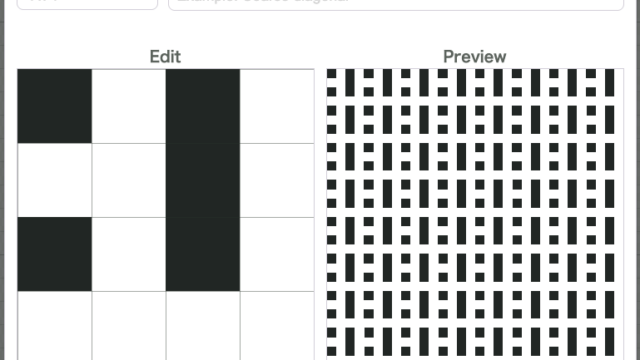
Dither Pattern Editor lets you create and save your own dithering patterns. It is useful when the built-in patterns are not enough and you want a texture that matches your own art style.
Function Description

How to Use Reduce Colors

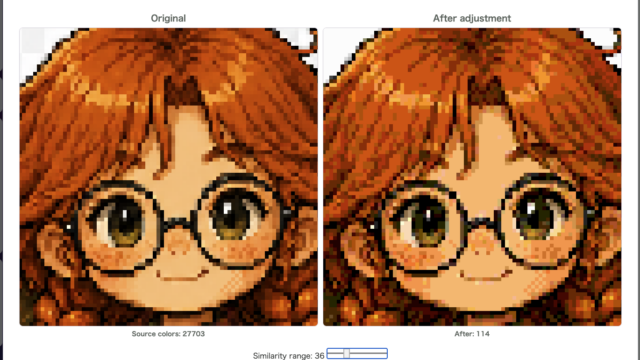
Reduce Colors groups nearby colors together to simplify the palette. It is useful when you finish drawing and realize that the color count has grown too large or that the image would benefit from a cleaner, simpler color structure.
Function Description

How to Use Color Balance

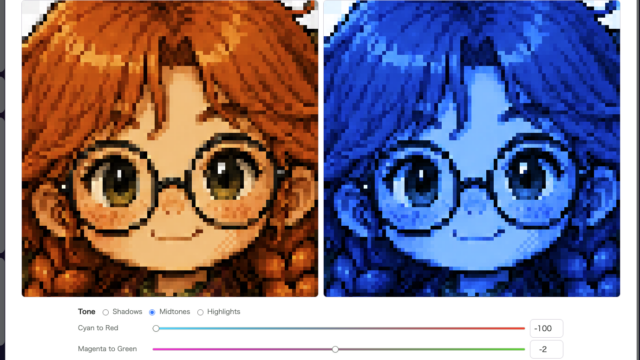
Color Balance does not shift the whole image in one flat step. Instead, it lets you adjust the color feel separately for Shadows, Midtones, and Highlights, which is useful when you want to refine the mood more carefully.
Function Description

How to Use Pixel Refine

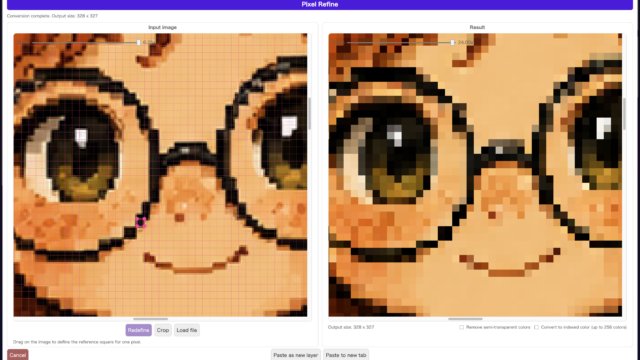
Pixel Refine loads an image and rebuilds it for pixel-art work based on a square that you define as “one pixel.” It is especially useful when you want to clean up AI-generated images or blurry scaled graphics so they are easier to use as game assets.