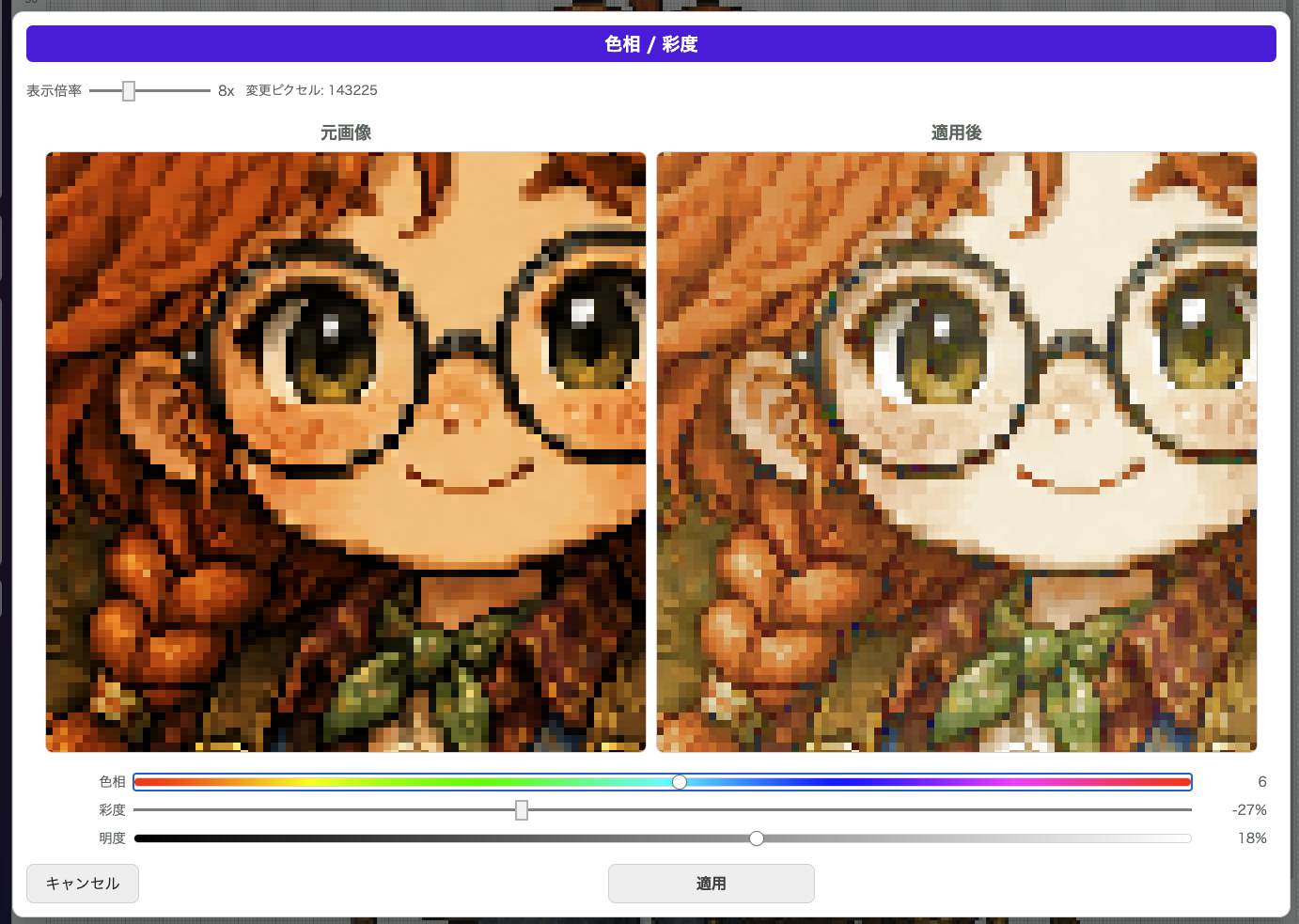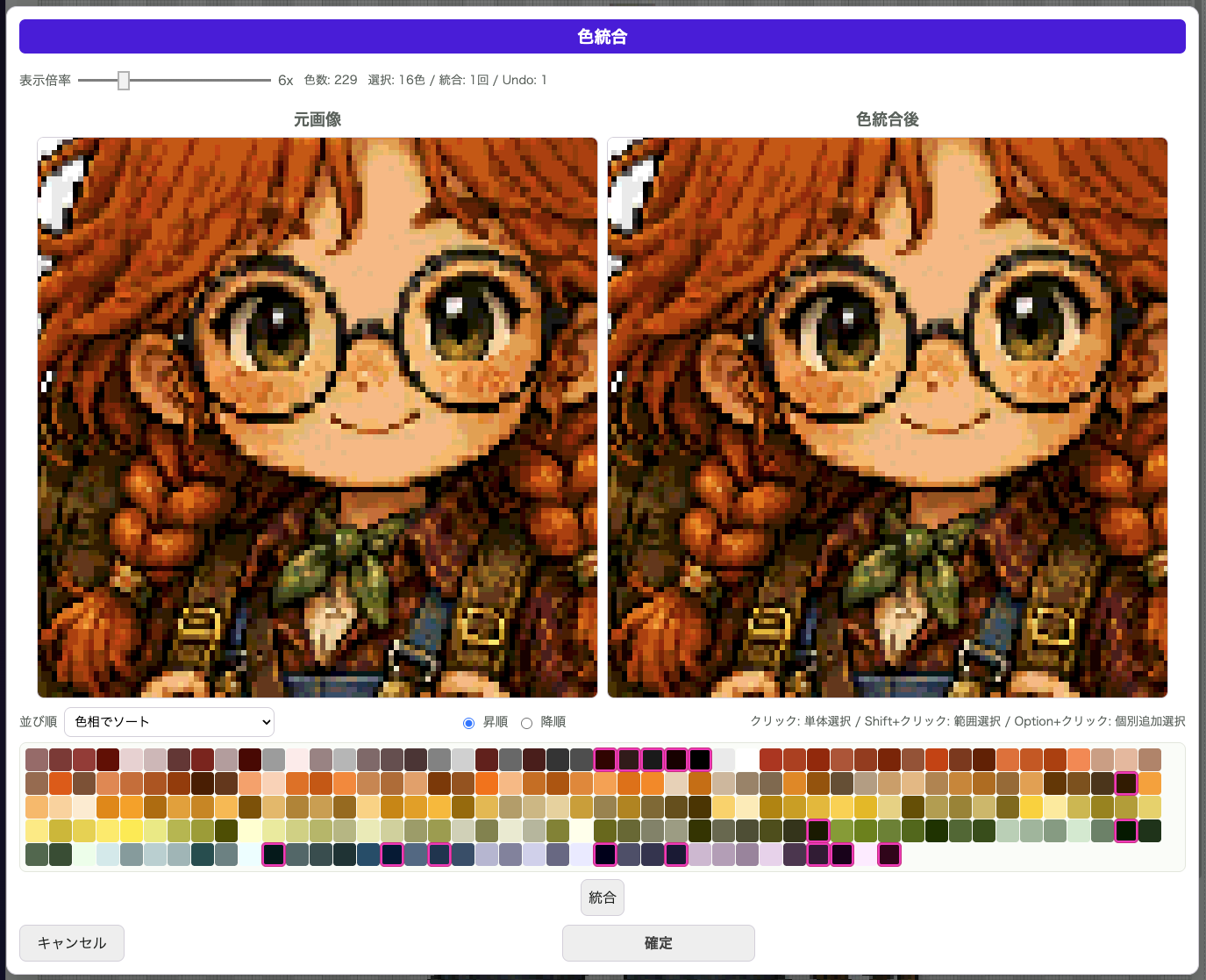
Merge Colors lets you reduce the number of colors while choosing exactly which colors should be combined. It is better than automatic reduction when you want to preserve your own intent while trimming the palette.
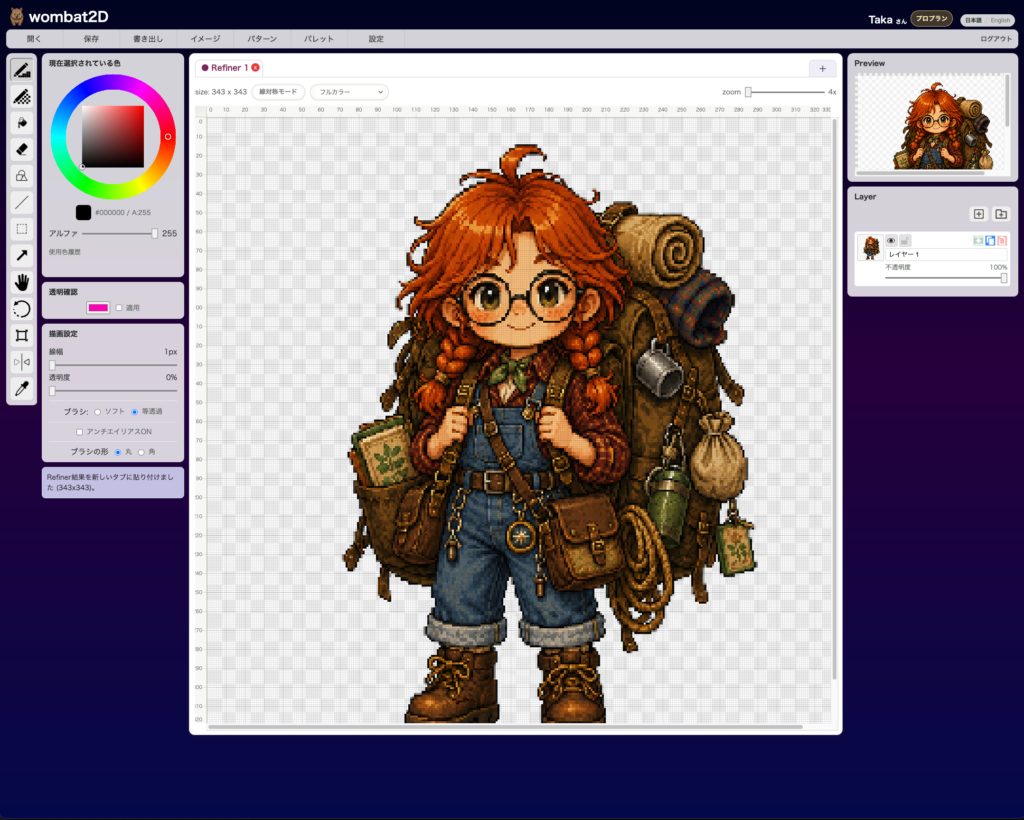
Make sure the image you want to edit is open.
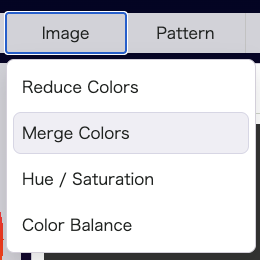
Open Image > Merge Colors to see the original image, the merged preview, and a list of the colors currently used in the artwork.
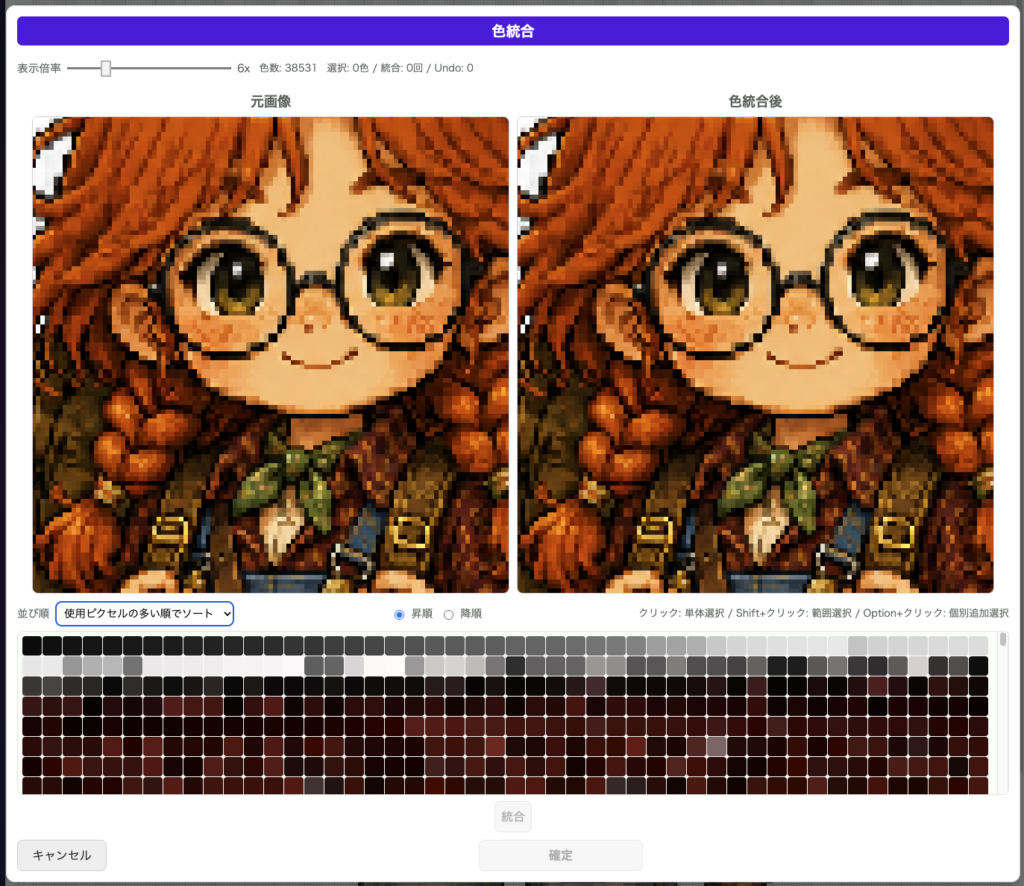
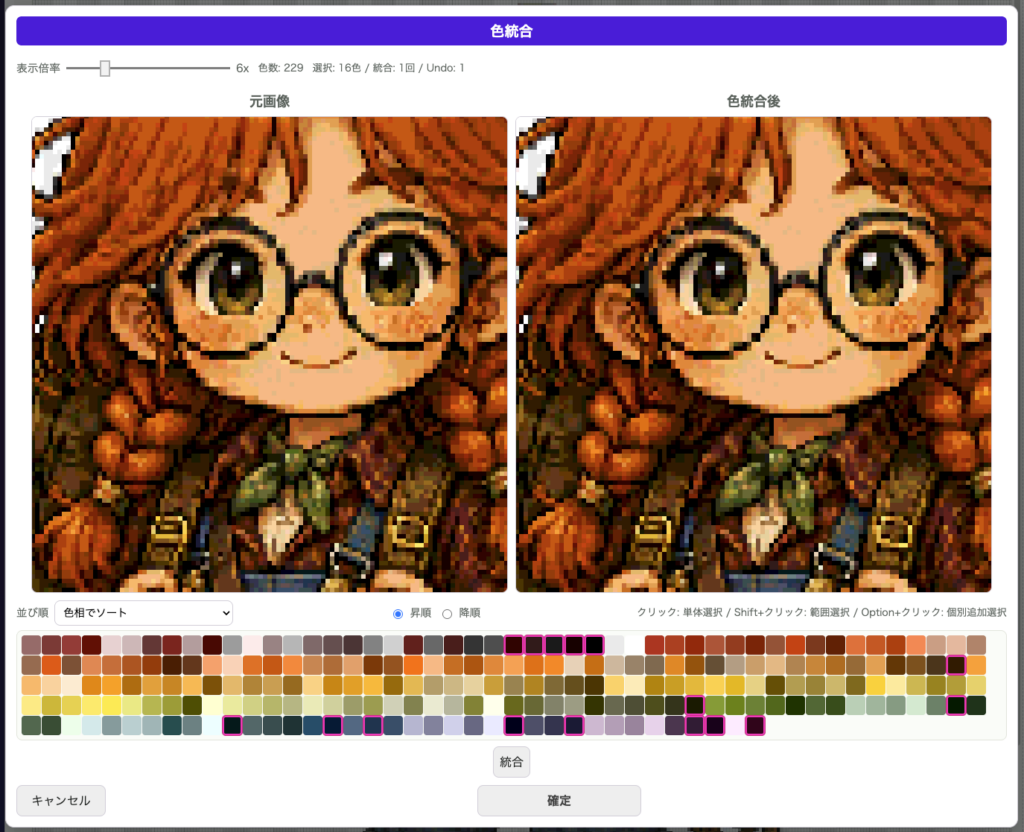
Inside the color list, you can click to select one color, Shift + click to select a range, and Option + click to add colors individually. Once two or more colors are selected, press Merge to combine them into a single average color.
Because you can test the merge several times inside the modal, it is easy to keep experimenting until the balance feels right. Sorting by frequency, hue, or saturation also makes large palettes easier to manage.
Best Time to Use It
It is especially effective as a follow-up step after Reduce Colors, when you want to fine-tune the remaining colors.
Good Use Cases
- You only want to merge colors that are almost identical
- You want to clean up skin tones or shadow colors carefully
- You want to compress the palette during the final finishing stage
Notes
- You can use undo inside the modal
- Finish with
Confirmto apply the result to the real canvas - It is especially helpful when you want to watch the overall color count while making decisions