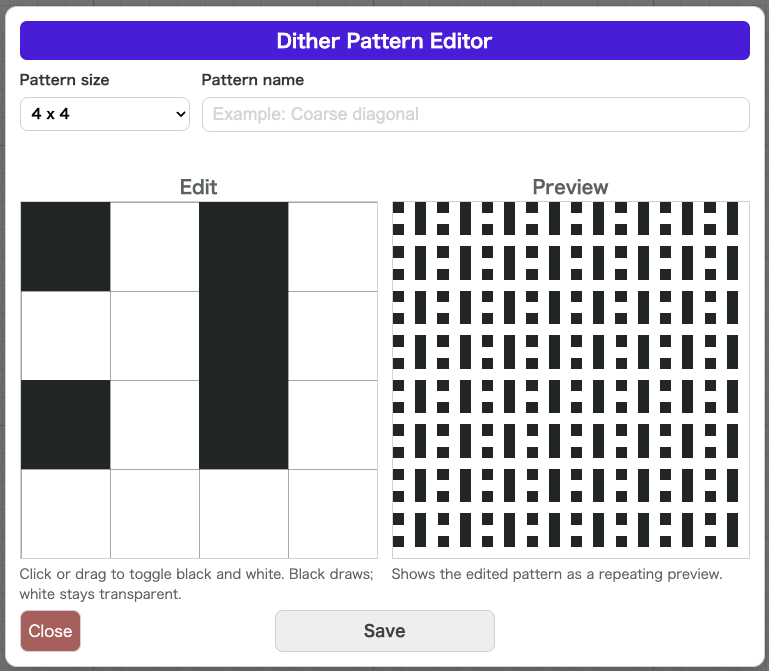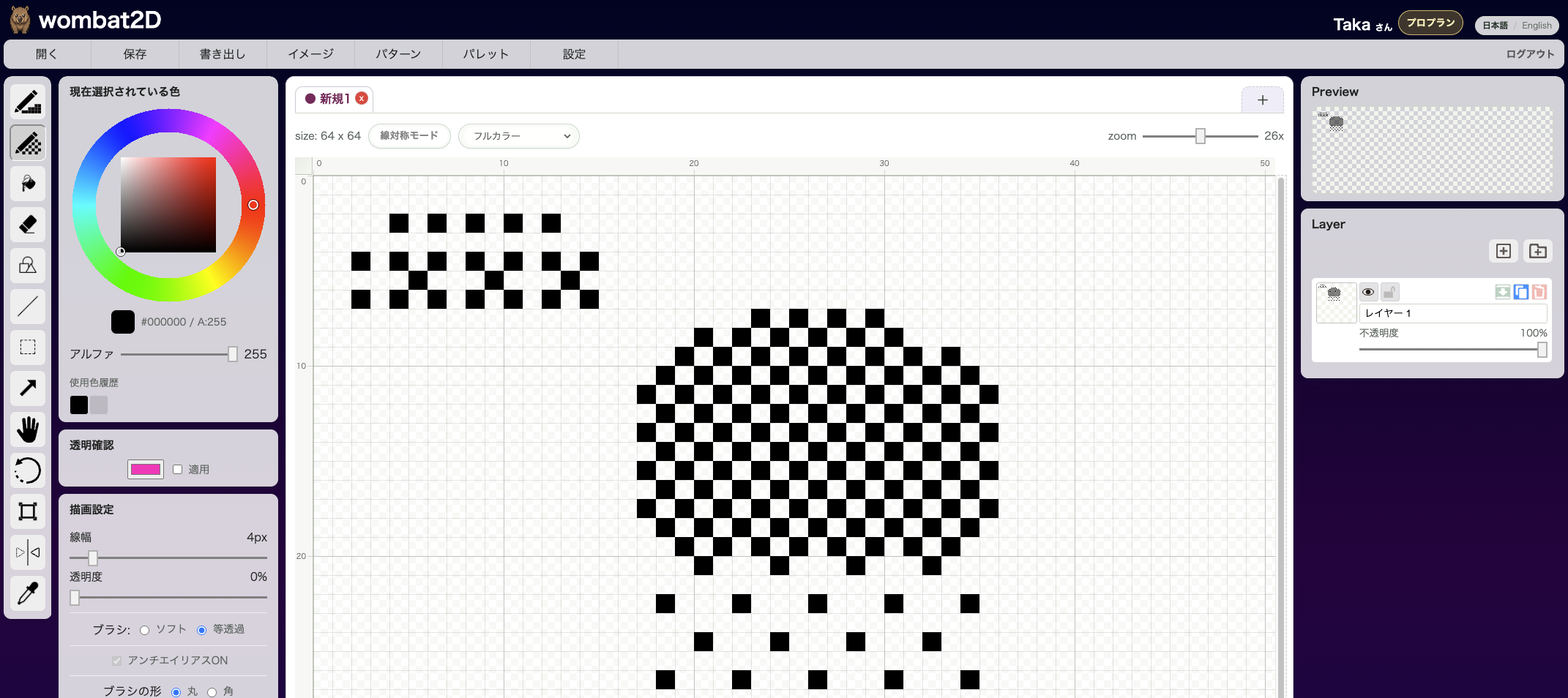
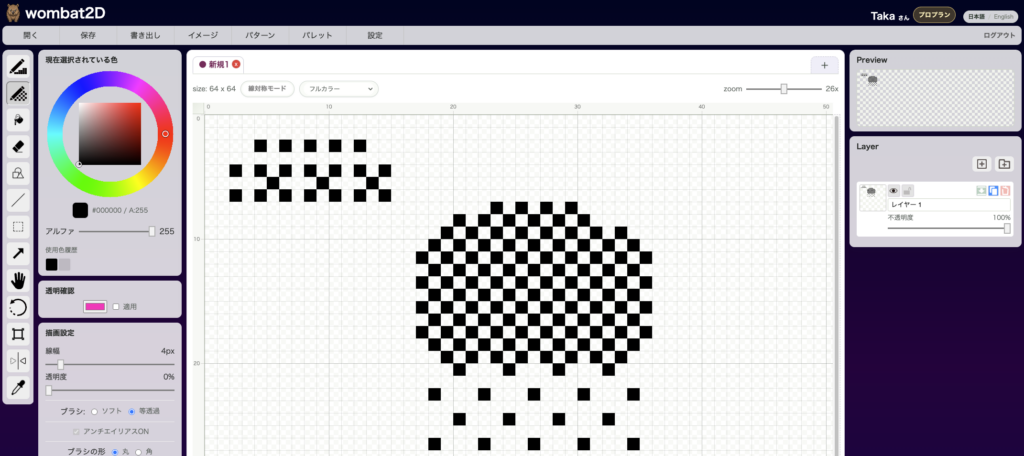
Dithering Pen Tool draws using the selected dithering pattern instead of laying down a solid color. It is useful when you want to place color as texture or pattern rather than as a flat fill.
Icon
This is the pen icon with a dithering mark. It sits below the normal Pen Tool.
Effect
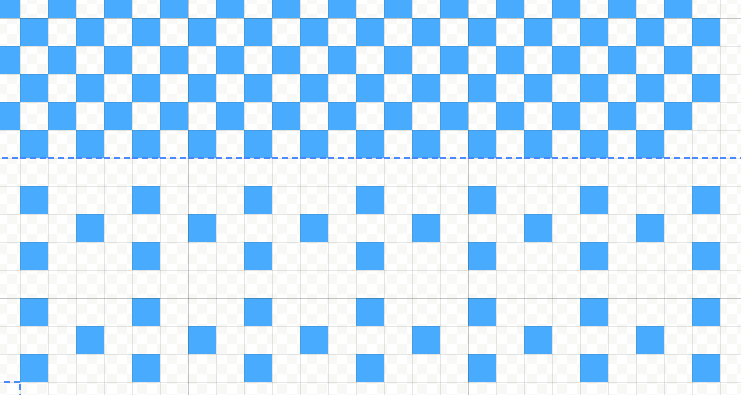
It draws using the current color together with the currently selected dithering pattern. Because color is only placed on the black parts of the pattern, it becomes much easier to suggest shading or texture with a limited number of colors.
How to Use It

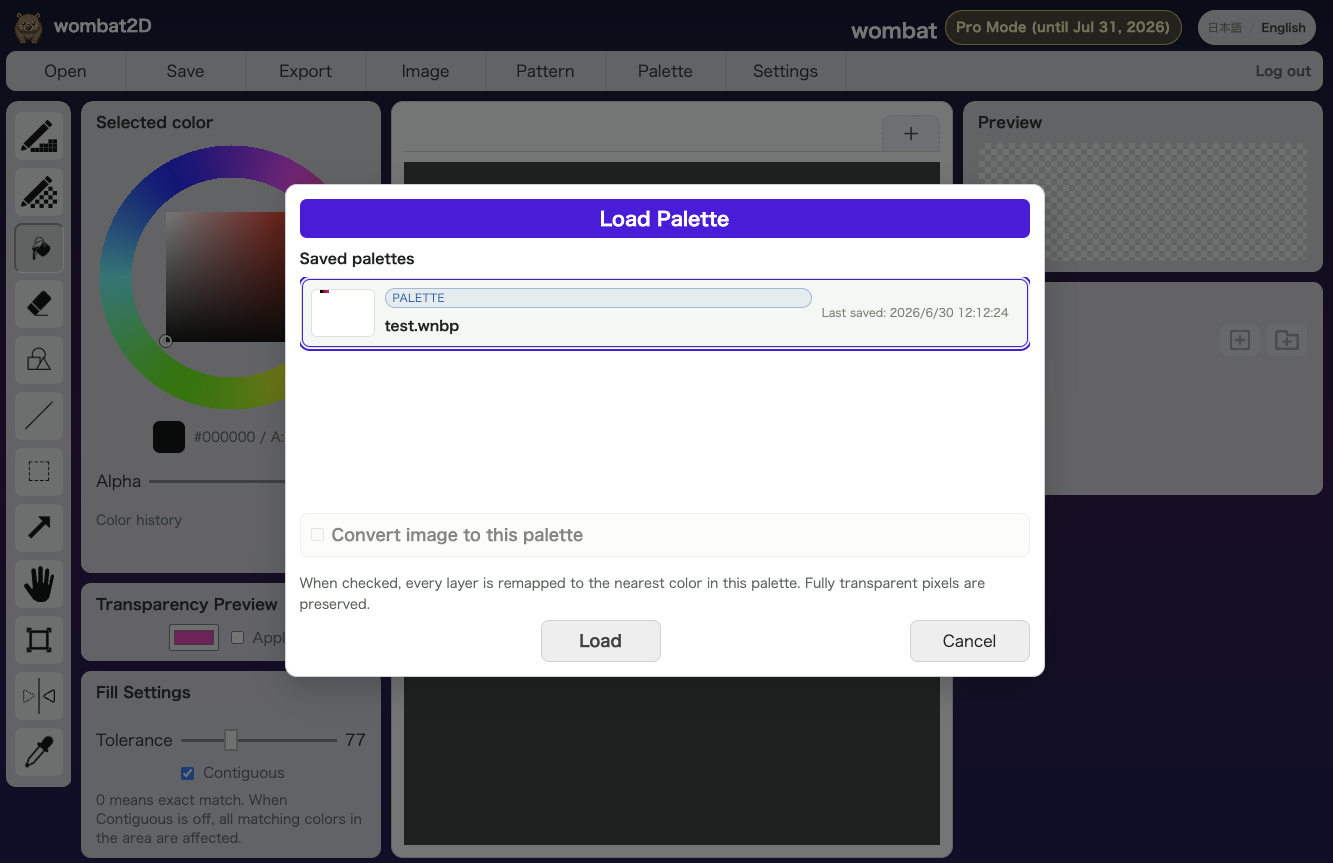
Select the Dithering Pen Tool and choose a fill pattern from the settings on the left side of the screen.
Then choose the pen size and color and draw directly on the image.
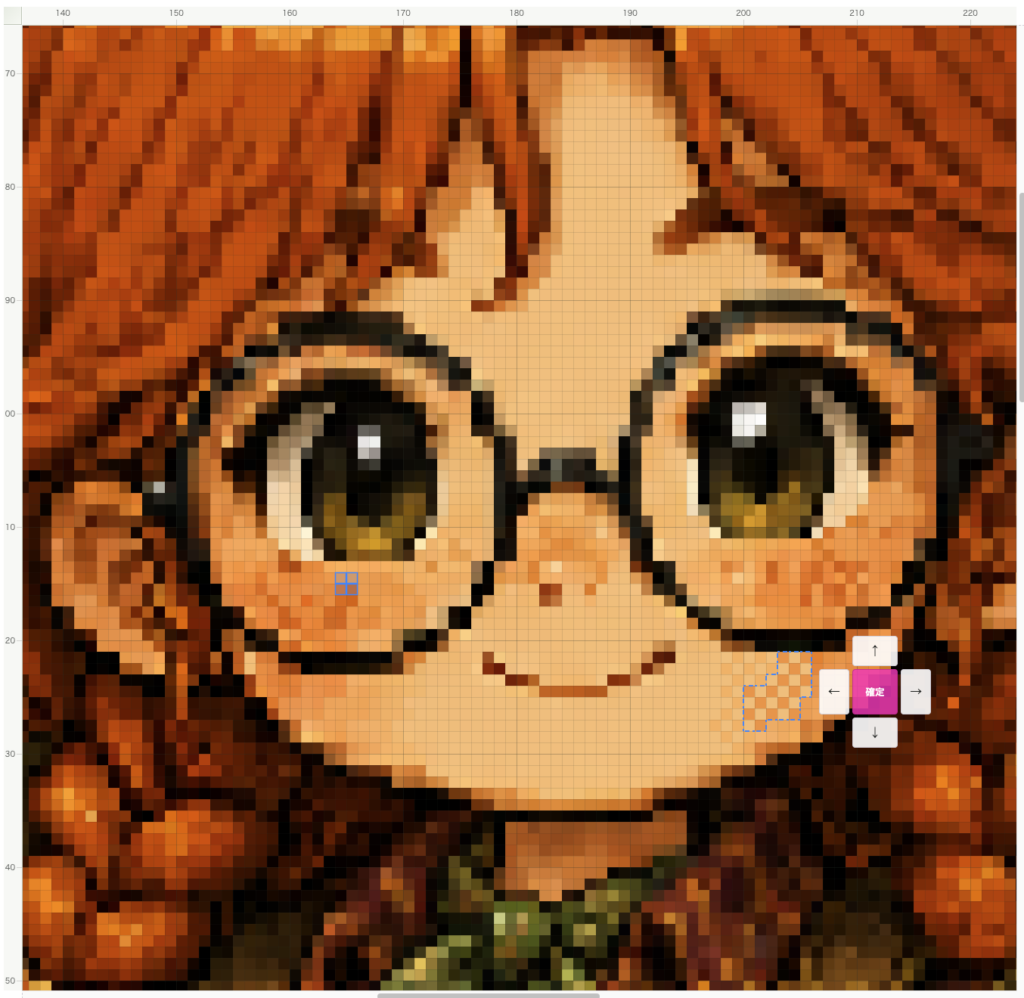
After drawing, arrow buttons and a confirm button appear. The arrows let you shift the pattern inside the painted area to fine-tune the texture.
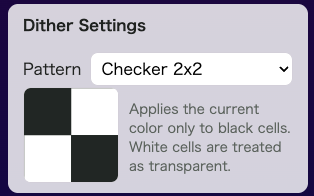
For example, when using dithering to express a gradient, even a small offset can noticeably change the impression.
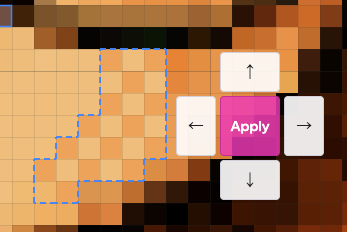
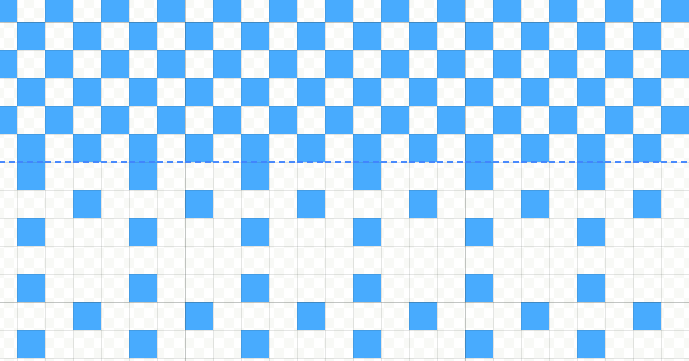
You can continue to adjust the pattern with the arrow controls until you press Confirm.
Shortcut
The default shortcut is Shift + D.
Related Shortcuts
Ctrl/Cmd + Mouse Wheel: change brush size- Hold
Space: temporarily pan the canvas Alt+ click: temporarily switch to the eyedropper